SP801E? Real Worth It?

The SP801E, which is the newest Pixel Controller by Shenzhen Sperll company, this company released the classic Controllers for the Addressable LED Strips like SP105E,  SP110E, SP108E, SP501E, etc. if you check the photo of the SP801E below, you will think, it looks the same like the SP105E, so if we own one the old product, why we need to another similar one, Is it’s really worth it?

SP801E Pixel Controller

The SP801E LED Controller with 4 output ports, each port supports 1024PCS ICs, so the totally supported number of ICs up to 4096PCS, not only supports the main types of ICs on the market but also supports multiple Art-Net software, supports regular rectangle layout setting and importing DXF files. built-in multiple types of effect layers, text layer, music effect layer, etc. the effect layers support a variety of custom parameters: direction, width, color, length, shape, etc. with the real-time preview function, you will know how it looks like before run on the LED Lights. so it can work with LED Strips, LED Matrix, LED Panels, etc.

SP801E Smart LED Controller

The Smart Pixel Controller supports AP mode and STA mode.

SP801E Smart Controller

the working voltage from DC5V to DC24V, the working voltage depends on the LED Lights. you can control the LED Controller by smartphone APP via WiFi, it supports IOS and Android mobile systems, you can download the APP “BalanX” in the APP stores. the Controller supports AP mode and STA mode.

SP801E

Button:
1. Click on the button: Switch AP/STA mode;
2. Press and hold the button: Enter the BluFi network configuration mode; LED Indicator:
1. Blue static: AP(Access Point) mode;
2. Green static: STA(Station) mode;
3. Green flashing: BluFi configuration mode;
Working Modes:
1. AP(Access Point) mode: Controller and Phone connect directly, controller works as an access point.
    1> Go to your phone Settings page, connect the controller(SSID like SP801E_XXX, the default password is 12345678);
    2> Open the BanlanX App, Click the “+” button to configure the new SP801E controller, then the controller will be shown on the device list; 2. STA(Station) mode: Controller and phone are in one same Wi-Fi network, in this network, users can operate the controller.
There are two ways to configure the controller into the local Wi-Fi network:
1> Connect your phone or tablet to a 2.4G Wi-Fi network. (Doesn’t support 5.0G Wi-Fi network)
2> Open the App and click the “+” button to scan devices, click Add manually and select SP801E controller in the device category;
3> Input your Wi-Fi network password;
4> BluFi config and AP config:
   BluFi config: Press and hold the device’s “STA/AP” button until the green led indicator flashes, then the device enters the network configuration state, click next and select the device you want to add;
   AP config: Switching the device to the AP mode, click next and connect your phone’s WIFI to the named like SP801E_XXX hotspot, the password is 12345678, and return to the APP;
5> Pressing next step to wait for the configure processing to finish;
6>After the configuration is finished, the LED indicator will turn into solid green, the controller will be shown on the device list.
How To Let Music LED Controller More Sensitivity?

How To Let The Music LED Controller More Sensitivity?

Recently some customers asked to us, they ordered the Music LED Controllers from other companies before, but works not good as expected. to check with us to see if we could provide a better LED Music Controller. OK, if we see music and controller characters, we will know that they want the emitting color of the RGB LED Strips will change automatically follow the beats of music, they need one Music LED Controller that will have better performance. so we will introduce one and check how to install.

LED Music Controller With 24 Keys RF Remote

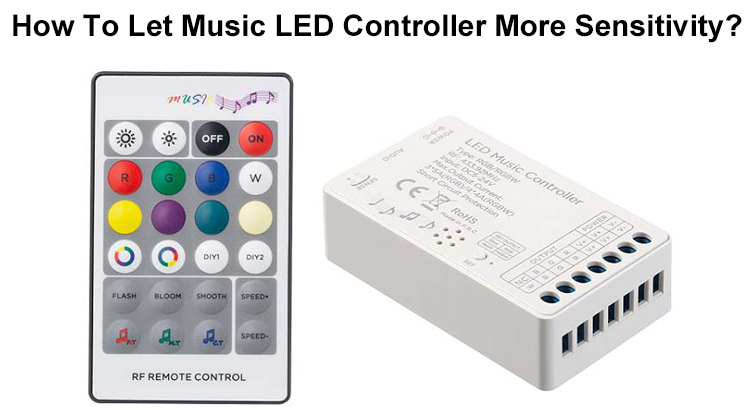
This LED Music Controlled was produced by Hoion, which is a Chinese company and focused on producing high-quality LED Controllers, LED Dimmers, Amplifiers, DMX and Dimming Drivers. the model of the Music LED Controller is HX-DA01, which with small size and comes with 24 keys RF Remote Control. with 3 or 4 output channels design and supports RGB or RGBW LED Lights, there is a button on the LED Controller, if the LED indicator light flash slowly means working in RGB model or working in RGBW model, the max output current is 5A when in RGB mode, 4A in RGBW mode. the side with a voice sensitivity dial and audio input jack, you can press the dial to adjust the sensitivity, the audio input jack allows to connect to your phone, PC or other audio devices.

RGB Sound LED Controller

Why is the Music LED Light Controller not good as you expected?

If you use the audio input method to get the audio signal, you can avoid the signal reduction and noise signal mixed. so if you want the colors of the color-changing LED Strips change automatically follow the beats, choose the audio input Music LED Controllers.

below we will introduce what you need and how to connect the LED Music Controller to the Strip Light and LED Driver, and how to operate the LED Controller.

  1. What do you need?

1*Music LED Controller With RF Remote Control

LED Music Controller

1*RGB LED Strips(60LEDs/Meter, IP20)

24V RGB LED Strip Lights

1*LED Driver(IP20 350W)

24V 350W LED Driver

1*Audio Wire with 3.5mm Connector

3.5mm Audio Wire

How To Connect them together?

  1. Connect the LED Strips and LED Driver to the LED Music Controller.

Wires On RGB LED Strips

there are blue, green, red and white wires on the 24V RGB LED Strips, you can insert the blue wire into the “B” output port, green wire to “G” output port, red wire to “R” output port and white wire to the V+ output port.

RGB LED Strip Wires

2. Connect the LED Music Controller to A LED Driver

Connect LED Music Controller To LED Driver

3. Power On The LED Controller.

Power On The Music LED Controller

there is a LED Indicator Light on the LED Controller, if it flashes slowly means working in RGB mode, if flashes quickly means working in RGBW mode. you can press the small round button to switch the working mode from RGB to RGBW.

4. Connect the LED Sound Controller to A PC

Connect the LED Music Controller To A PC

On the left side there is a sensitivity adjustable dial, you can rotate it to adjust the sensitivity to music.

How does It work?

  1. With Audio Input

2. Without Audio Input

in the video, you can see that the LED Music Controller became more sensitive after being connected to the PC. so if you want to purchase a Music LED Controller, we will recommend the one with an audio input jack.